
QuickStart - Deploying ComfyUI 2
Load a workflow template inside ComfyUI, download missing models via SSH, and generate your first output.
-
Load Workflow in ComfyUI
Section titled “Load Workflow in ComfyUI”Select Template inside ComfyUI.
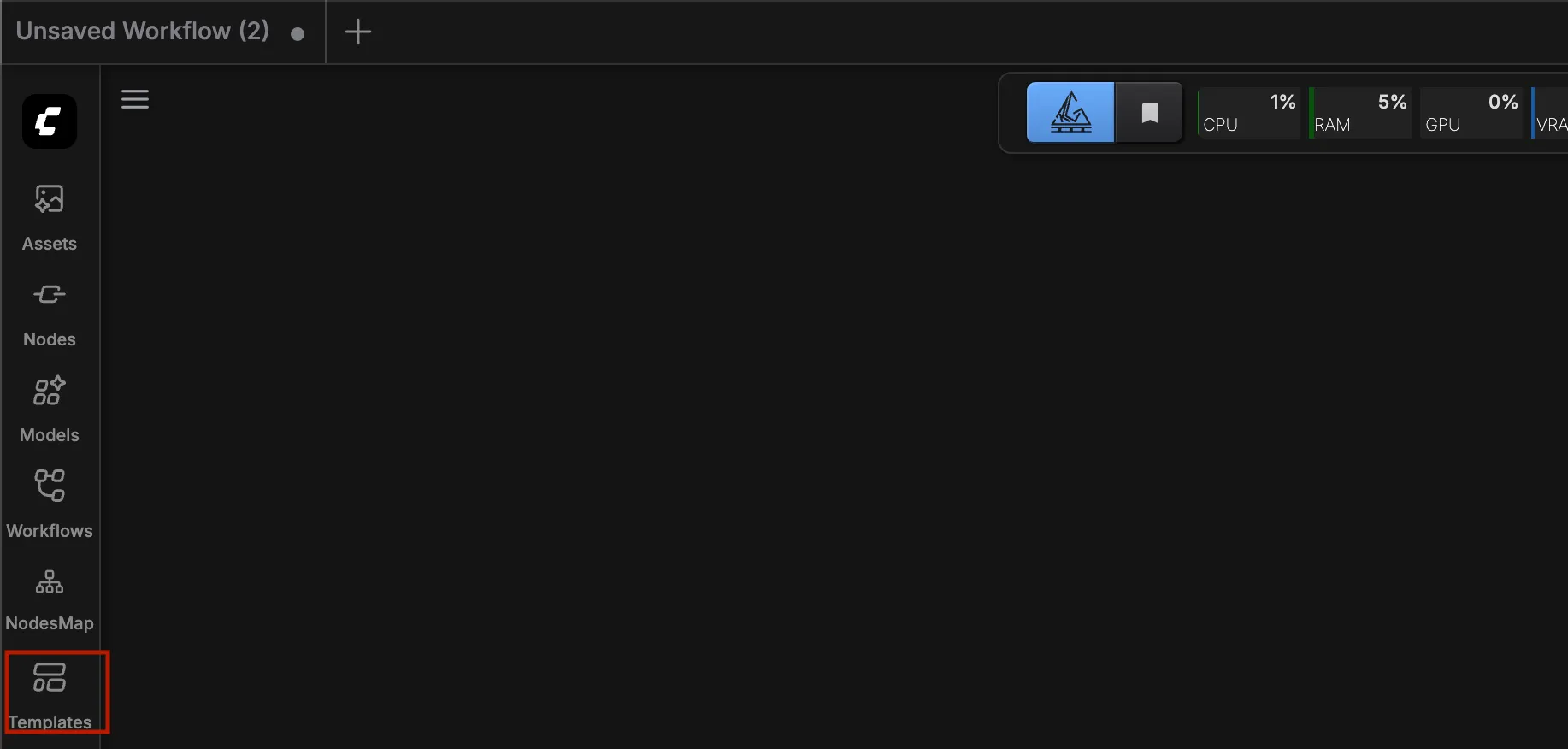
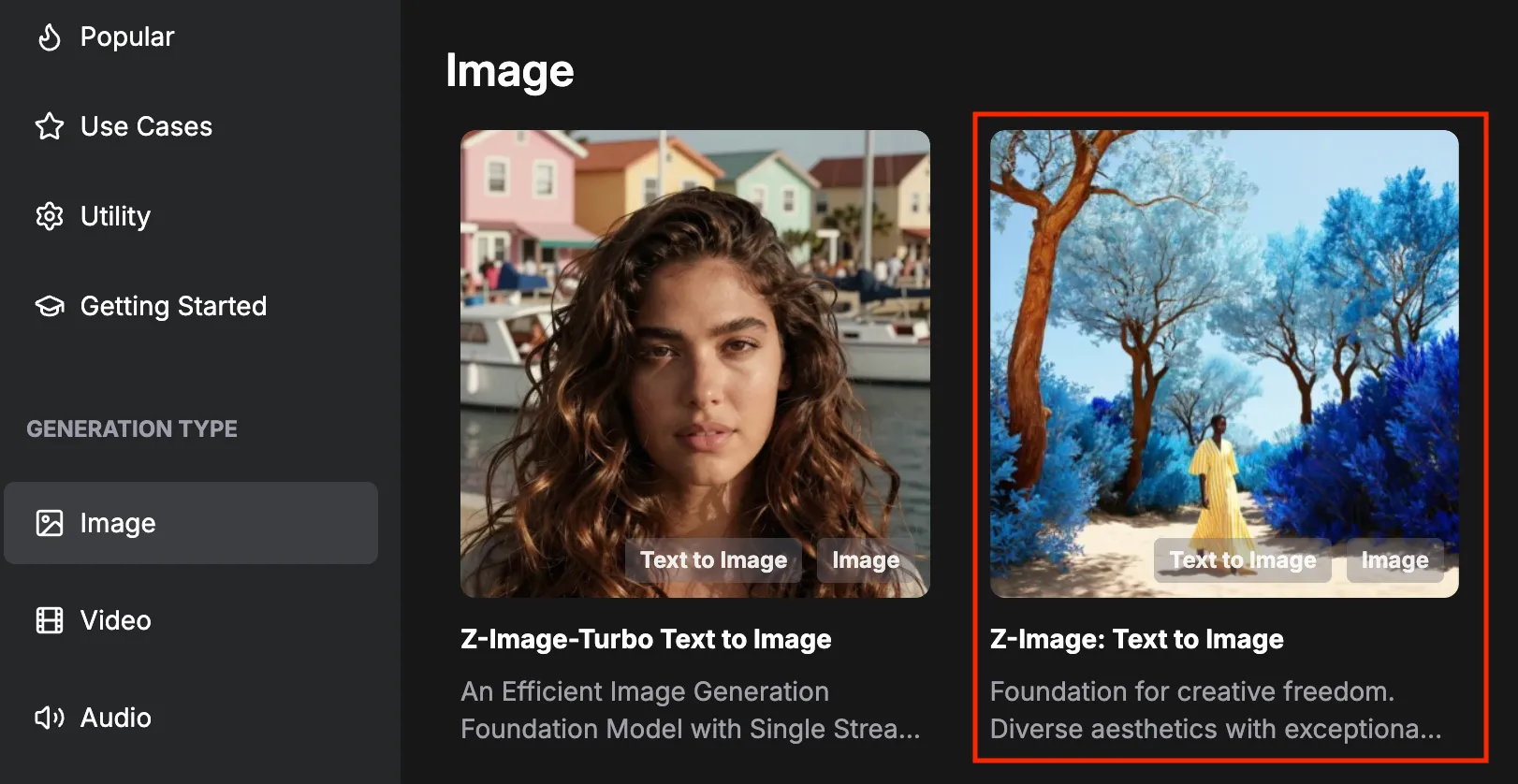
Check the missing nodes in the modal.
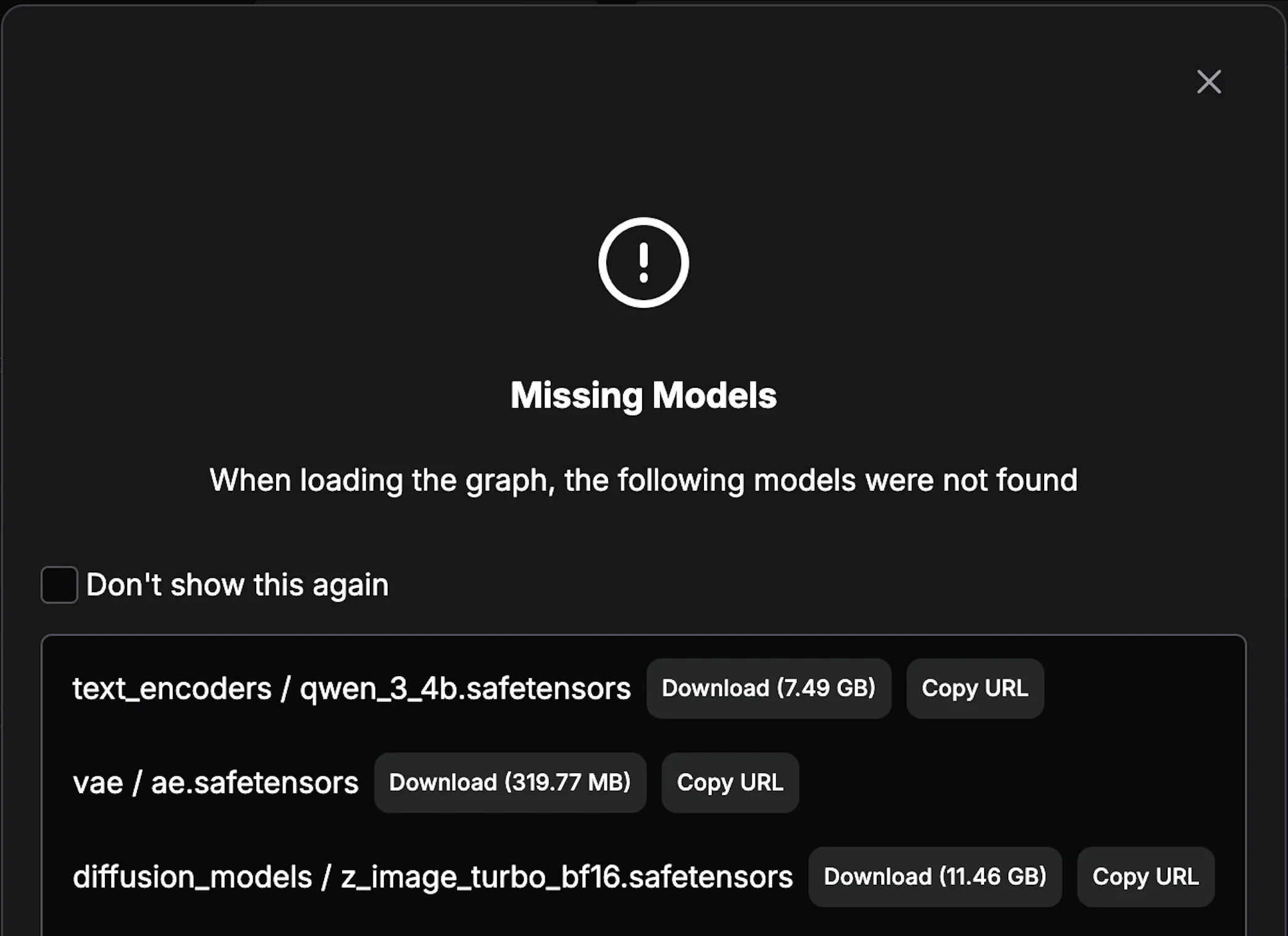
Don’t close this popup — you should click [Copy URL] next to each model.
Via SSH, download the models with the commands below
Section titled “Via SSH, download the models with the commands below”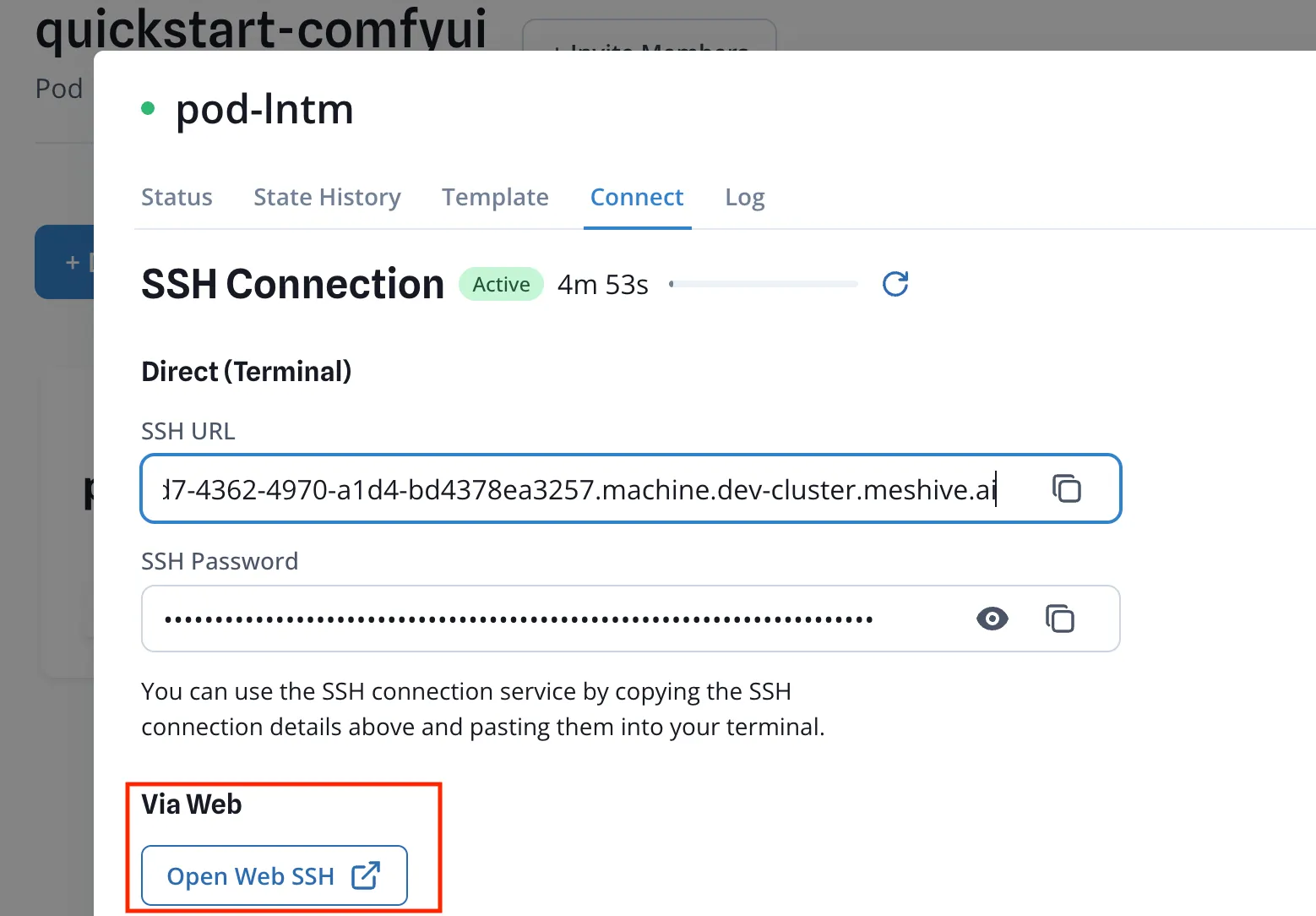
Download each file into the folder ComfyUI reads that model kind from, under
/workspace/ComfyUI/models/. Putting a file anywhere else means ComfyUI will not find it and the node stays red.1) Create the folder if it doesn’t exist:
Terminal window mkdir -p /workspace/ComfyUI/models/vaewget -c -O /workspace/ComfyUI/models/vae/ae.safetensors \"https://huggingface.co/Comfy-Org/z_image_turbo/resolve/main/split_files/vae/ae.safetensors?download=true"mkdir -p /workspace/ComfyUI/models/text_encoderswget -c -O /workspace/ComfyUI/models/text_encoders/qwen_3_4b.safetensors \"https://huggingface.co/Comfy-Org/z_image_turbo/resolve/main/split_files/text_encoders/qwen_3_4b.safetensors?download=true"2) Skip
mkdirif the folder already exists:Terminal window wget -c -O /workspace/ComfyUI/models/diffusion_models/z_image_bf16.safetensors \"https://huggingface.co/Comfy-Org/z_image/resolve/main/split_files/diffusion_models/z_image_bf16.safetensors?download=true"
-
Generate Image or Video
Section titled “Generate Image or Video”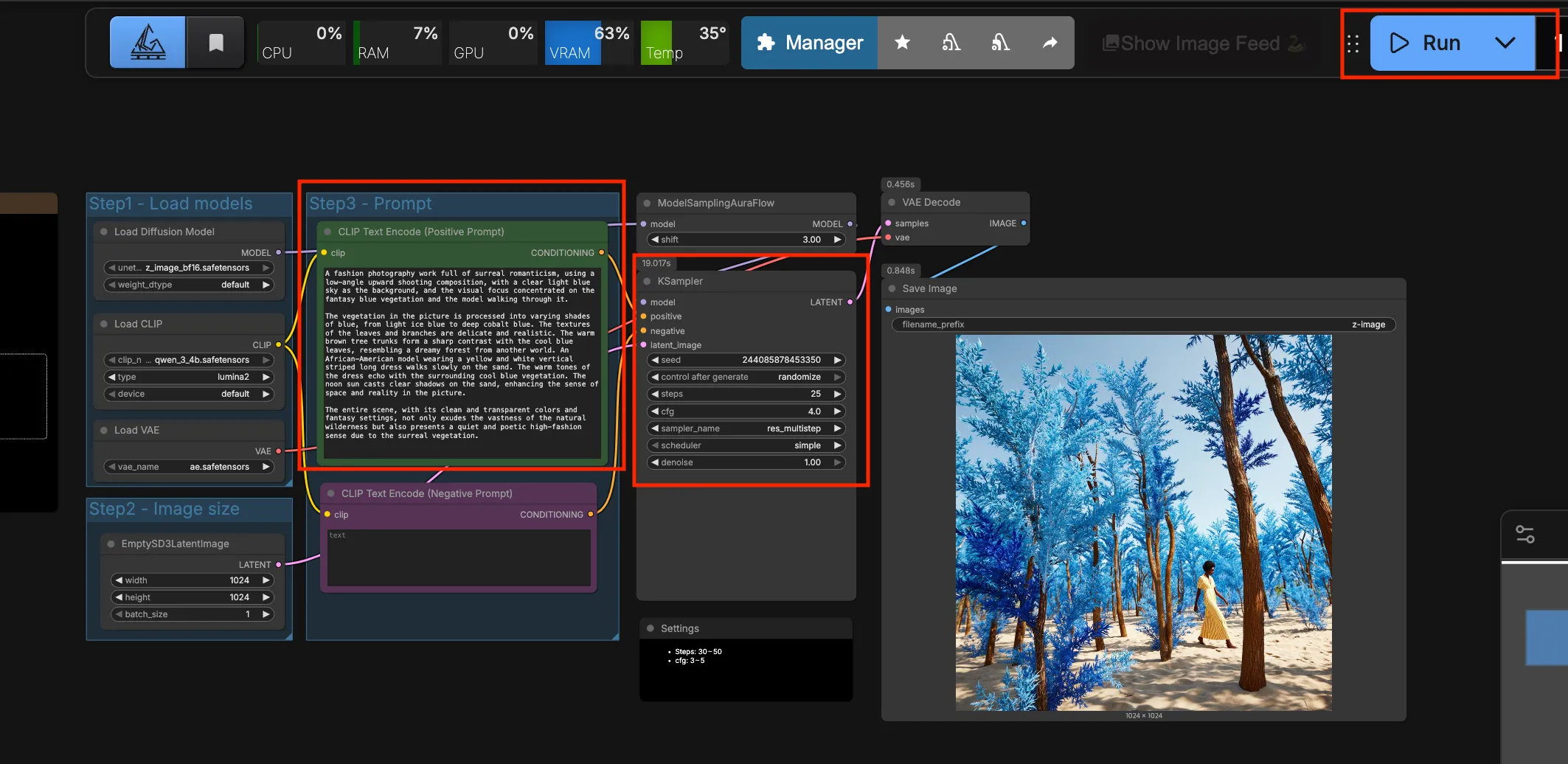
Next Steps
Section titled “Next Steps”- Write Prompt — input the positive and negative prompts. Z-image Turbo allows for high-quality generation even with simple descriptions.
- Modify Sampler Settings — adjust parameters such as steps, CFG scale, and seed to fine-tune the generation process.
- Apply LoRAs — connect LoRA nodes to apply specific styles or characters to your Z-image Turbo workflow.